~/writinggridpane-firewall-fleet-7g-8g-cloudflare
One firewall standard for every GridPane site: 7G, 8G and Cloudflare
How I brought 54 WordPress sites on 10 GridPane servers to one firewall standard: 7G everywhere, 8G watching and then blocking, Troy Glancy's five Cloudflare rules in front, and a dashboard that shows all of it. With a prompt for your own agent.

Contents
Every WordPress site I host on GridPane (opens in a new tab) is now held to one firewall standard, and I can see where each one meets it. That's 54 sites on 10 servers. Cloudflare's firewall checks each request first, against a standard set of five rules. GridPane's 7G firewall checks it again on the server. On five sites, the newer 8G firewall watches beside 7G, and on two more it has replaced 7G.
There was no single day when I switched a firewall on everywhere. 7G was already on for every site. The work was building a standard around it, and getting it right on every site and every Cloudflare zone, one by one.
Why does a fleet need a firewall standard?
Because "the firewall is on" is a much weaker statement than it sounds.
When my dashboard first read every site's 7G settings, five sites had one of 7G's rule groups switched off. Those were mine. At some point 7G had blocked something I wanted, and I'd switched the whole rule group off to let it through, meaning to come back and write a proper exception. I never did. That lowers the guard for every request to let one through.
Then there were the parts nobody sees. GridPane doesn't rotate 7G's log, so it grows forever: one server's 7G logs added up to 107 MB. GridPane's API can't read those logs either, so nothing outside the server could show what 7G was blocking. And when my AI agents started signing in to sites through Novamira HQ, 7G blocked the sign-in on every server, because the sign-in carries 127.0.0.1 in its address. Every server needed the same fix.
How did 7G Helper and 8G Helper become the method?
Neither started as a fleet project. Each solved one problem, and the method grew out of them.
7G Helper came first: paste a blocked line from the 7G log, and it names the rule that fired and writes an exception for that one kind of request. Every exception comes with two tests, one that must now pass and one that must still be blocked.
Then Jeff Starr, who wrote 7G, asked whether I knew about its successor, 8G. GridPane has no switch for 8G, and Jeff advises running one or the other, never both. That would mean turning 7G off and finding out what 8G blocks by blocking it. Claude found a gentler way, which I wrote up in Trying the 8G firewall beside 7G: watch mode. 8G checks every request and logs what it would block, while 7G keeps protecting the site. 8G Helper (opens in a new tab) reads those log lines and walks a GridPane site through the change. On October 22 I put watch mode on seven sites across five servers.
Those two tools gave me the rules for every firewall change since, on any site:
- Watch before you block. Log what a change would do before it does it.
- Fix with exceptions, never switches. Every allowance covers one kind of request.
- Prove both directions. A request you want passes; an attack still fails.
- Back up first, and undo yourself on failure. Check nginx's config before every reload, and put things back if the check fails.
What happened when a staging copy broke nginx?
GridPane can make a staging copy of any site in a couple of clicks. On November 7, a copy of a client's site broke nginx for its whole server. The next day it happened again, on another server.
Both sites had 8G in watch mode: two small files in the site's nginx folder, plus a subfolder, 8g/, holding the rules. GridPane's copy took the two files but not the subfolder, so the copy loaded rules that weren't there. Copying the subfolder across doesn't help, because 8G's log format is named after the site (ng8_example.com), every site's log formats share one block of nginx's config, and nginx refuses the same name twice. The copy's log even pointed at the live site's log file.
GridPane's reload at the end of making the copy failed, and it emailed me that nginx's config had a syntax error. Every site kept running, because a failed reload leaves nginx on its last good config. But no change to any site on that server could load after that, GridPane's included, and a restart or a reboot would have taken every site on the server down.
The fix was to take 8G off the copy. The lesson goes beyond 8G: anything you add by hand to a site's nginx folder travels with a staging copy, and anything with a name in it can clash. That includes a log_format, a limit_req_zone or a proxy_cache_path. Now I run a check after every copy, and 8G Helper's guide warns about it (step 6 below has the check).
Why add Cloudflare's firewall in front?
Because the cheapest request to refuse is one that never reaches the server. 7G and 8G run inside nginx, so the server has already done some work by the time they say no. Cloudflare's firewall runs at Cloudflare's edge. It can challenge a visitor with a check that a browser passes and a script fails, block whole hosting networks, and tell a real Googlebot from a fake.
The five rules I use aren't mine. They're Troy Glancy's, published at Web Agency Hero as Cloudflare WAF Rules v3 (opens in a new tab). His page explains each rule and keeps the expressions up to date. In short:
- Allow good bots. Verified search engines and other good bots, plus your own server's address, skip the rest.
- Challenge aggressive crawlers. SEO tools and scrapers, and any unverified bot.
- Challenge big cloud providers, and, if you choose, visitors outside your country.
- Challenge VPNs and the WordPress login page.
- Block hosting networks, dangerous WordPress paths, AI crawlers and Tor.
Five is exactly what Cloudflare's free plan allows. Here is where my version differs from Troy's:
- Countries. Troy leaves the country check optional, set to your audience. Most of my clients serve the US, so every visitor from outside the US gets a challenge by default.
- Rule 5 blocks. Troy's page offers a challenge as the gentler option if real people on rented servers get caught. Mine blocks.
- More hosting networks. I added seven more networks to rule 5. In the week before, 17,061 of 24,800 firewall events on my zones with no rules came from just those seven.
- Link previews. When someone sends a link in iMessage, the preview is fetched by their own phone, with a user agent that names Facebook's and Twitter's crawlers. It's never a verified bot, so it got challenged and the preview came up blank. A narrow exclusion inside rules 2 and 3 lets that exact user agent read a page. It isn't a skip in rule 1, because anyone can copy a user agent.
- The block runs second, not last. Mine run in this order: allow good bots, block, then the three challenges, with the cloud and country challenge before the crawler one. Troy's page runs the block last. The next section explains why I moved it, which I found two days after this post went up.
- Rule 5 leaves out the VPN networks. Four networks were on both the block list and the VPN challenge. Mine only challenges them, for a reason that's also in the next section.
- Every site-specific allowance goes in rule 1, pinned to an address or a path. Rule 1 skips everything below it, so each allowance is a hole. One taught me why: an image service adds its own name to the user agent of whoever requests through it, so scanners using the service skipped the rules until the allowance also required the image path.
- Variants. Static sites get four rules, and development sites block search and AI crawlers in rule 1 instead of allowing them. A few sites need more. This blog skips the cloud rule, because GitHub Actions publishes its posts from Microsoft's cloud.
Why does my block rule run before the challenges?
Added November 18. A client's page-view stats gave it away. Their home page was getting about 1,000 extra views a day, and the visitors weren't people. They were headless Chrome, a real browser run by a script with no screen, on servers at Tencent Cloud in Hong Kong and at DigitalOcean. Both networks are on my block list, so none of them should have reached the site.
They got in because of the order. Cloudflare checks the rules from the top and stops at the first one that acts. A visitor from outside the US meets the country challenge before it ever reaches the block rule. A challenge only asks the visitor to prove it's a real browser, and headless Chrome is one, so it passes. A visitor that passes a challenge is let in, and the rules below never run. So my block rule only ever stopped the hosting traffic no challenge had caught first, which in practice meant US addresses.
The numbers were plain once I looked. In 4.6 hours on that site, 1,416 of the 2,153 requests that passed a challenge came from networks the block rule lists. On another client's site, the same Tencent servers passed even the challenge that asks for a click, 102 times in a week. A challenge is no wall for a network you've already decided to block.
The fix is to move the block rule up, straight after the allow rule. That raised one question. Four VPN networks were on both lists: the block and the VPN challenge. With the old order the challenge always caught them first, and the events showed who passed it: real people on VPNs, each solving it once by hand and then browsing normally. Moving the block up would have started blocking them. So I took those four networks off the block list, and VPN users see exactly what they saw before.
Then the agent read seven days of firewall events on all 64 zones, read-only, and counted challenge passes from networks the block rule lists:
- Every zone running these rules had the old order.
- 11 zones were letting hosting networks through, the first site included. Those were reordered.
- 6 zones only let through VPN users. They stayed as they were.
- The rest showed nothing that week. They move to the new order the next time their rules change, and my daily report flags each one until then.
On the first site, before the change, Tencent's servers had passed the challenge 978 times in 4.6 hours. In the first ten minutes after it, they were blocked 7 times and got through none.
If you use Troy's rules, check your own order, especially if you challenge other countries. A leak is easy to spot: in Cloudflare's security events, filter for challenges that were solved or bypassed, and look for networks your block rule lists.
How do scoped tokens keep the agent safe?
I manage 62 Cloudflare zones in 13 accounts, and many of those accounts belong to clients. An AI agent did most of the typing. Which key it holds is the most important question in the project.
Many guides still reach for Cloudflare's Global API Key, which can do anything your Cloudflare user can do, in every account you belong to. I don't use it for this. Instead, there are two tokens I made by hand, each kept in its own file outside every repository:
- A read-only token, from Cloudflare's "Read all resources" template. All research uses it: which rules a zone has, what got blocked, whether the site's DNS even goes through Cloudflare.
- An edit token for zone settings. It can change firewall rules and a short list of other zone settings on the zones I manage, and it expires in a year. It can't touch billing, members, Workers or Pages.
(For Fail2Ban, each server also has its own token, limited to its own zones and usable only from its own address.)
The limits on the token are half of it. The other half is how the agent may use it:
- It never sees the token. Its commands read the file inside the command, so the value never shows up in the conversation or a log.
- It reads with the read-only token, and uses the edit token only for the write itself.
- It changes a client's zone only when I name the site and the change.
- It saves the zone's current rules before each write. After the write, it reads them back with the read-only token, checks they match exactly what it sent, and tests the live site.
- It never prints a whole rule. A rule can hold a secret: one of mine held a build key, and a plain read printed it into two session transcripts before this became a rule.
On November 9, 34 of the 61 zones I had then had no custom rules at all. That day 25 of them got rules and 23 more got the new hosting networks, and every one read back exactly as sent. A first attempt failed: sending only the changed part of a rule replaces the whole rule, so every update now sends complete rules. And two zones turned out to carry the full set of rules while their DNS skipped Cloudflare entirely (a grey cloud), so visitors never met the rules. My dashboard now marks a zone like that "Bypassed".
How did 8G go from watching to blocking?
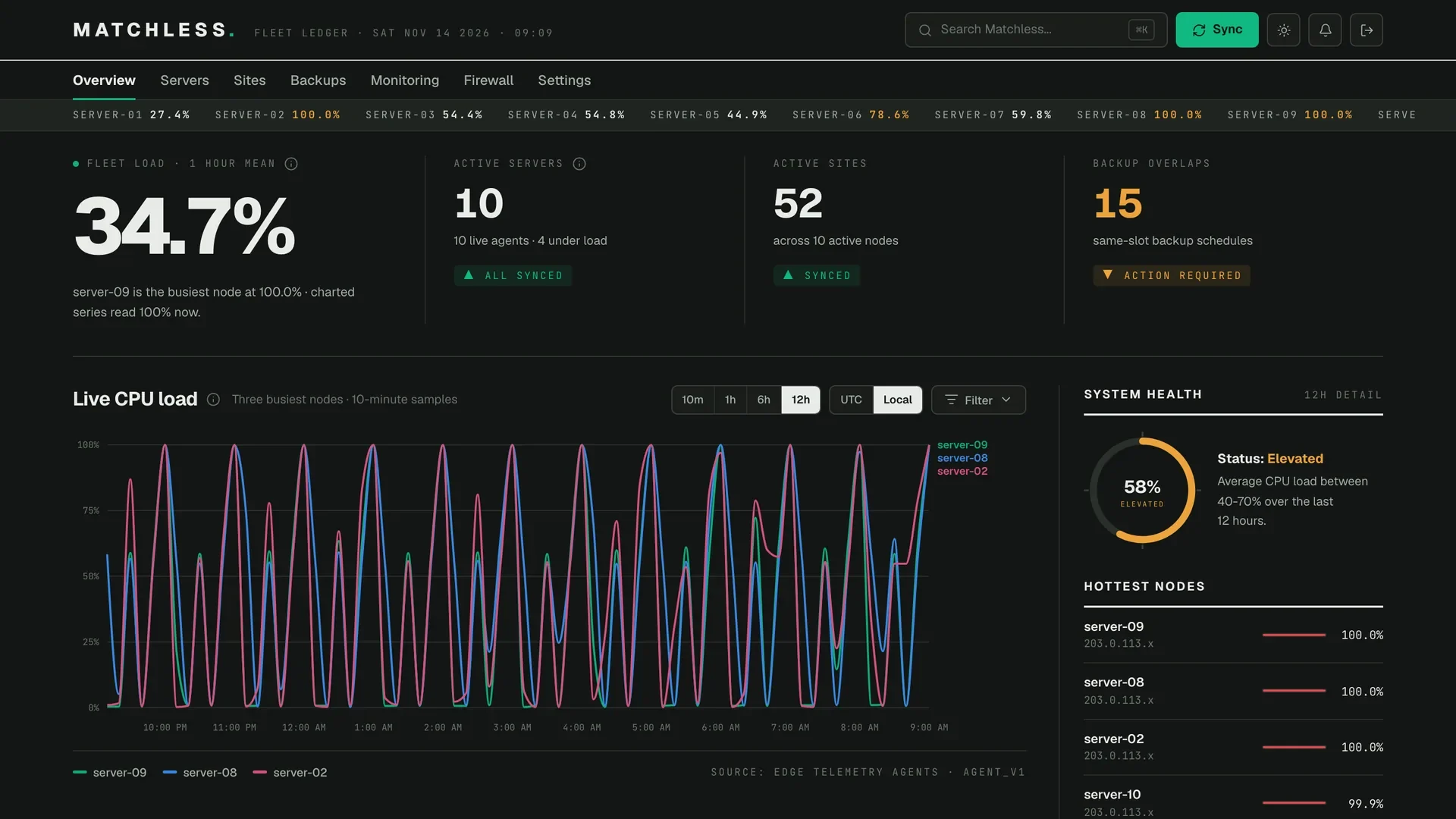
On November 14, Matchless Fleet learned to read every site's firewall state. All 56 sites then on my servers had 7G on, five of them weakened. In 24 hours 7G had blocked 3,573 requests across the fleet. On one site in watch mode, 8G would have blocked another 6,568, nearly all of them from one crawler rule.
That afternoon I switched two sites on one server to 8G alone, as a test drive. One of them is a store. Three files in each site's nginx folder do it, and nginx loads them in alphabetical order:
8g-watch-main-context.conf, already there, logs what 8G matches.8g-x-allow-main-context.confclears one 8G rule group for one named caller: Ahrefs' crawler on both sites, and the store's payment webhooks by their exact path. Cloudflare's rule 1 already lets those webhooks through at the edge, so it's the same allowance at both layers.8g-x-enforce-main-context.confcarries over the exceptions the site had in 7G, then blocks.
Then 7G went off for those two sites, and the checks ran from outside. The home page, the REST API, a link preview and the agent sign-in all worked. A query string carrying 127.0.0.1, a request for /backup.zip, a script tag in a query string and curl's own user agent were all refused. A real Ahrefs crawl later went through too. The other five sites stay in watch mode while I keep testing.
What does Matchless Fleet show?
Each site's page in Matchless Fleet has a section called "Server firewall: 7G and 8G". It shows whether 7G is on or weakened, whether 8G is idle, observing or blocking, and the last 24 hours of each firewall's log by rule, with the user agents or paths behind each 8G rule.
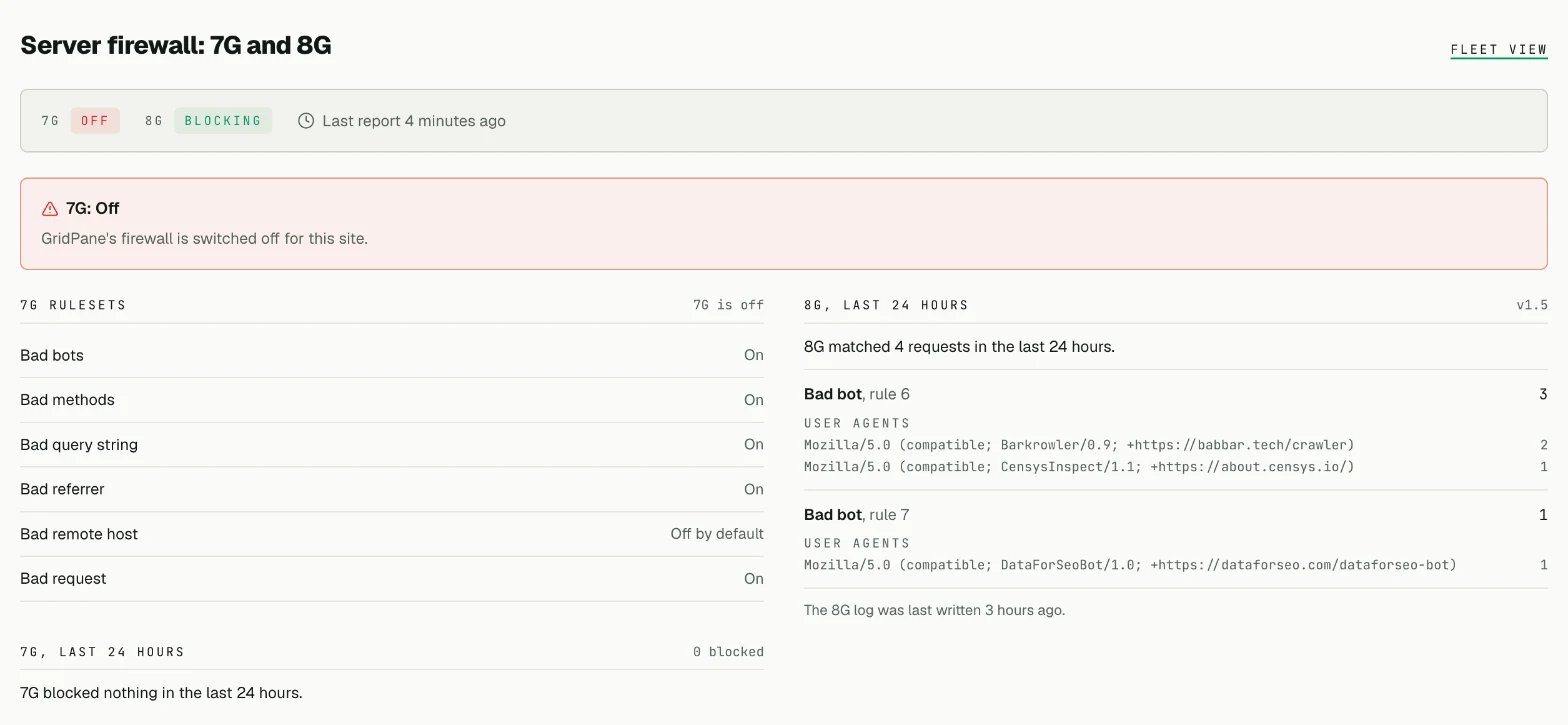
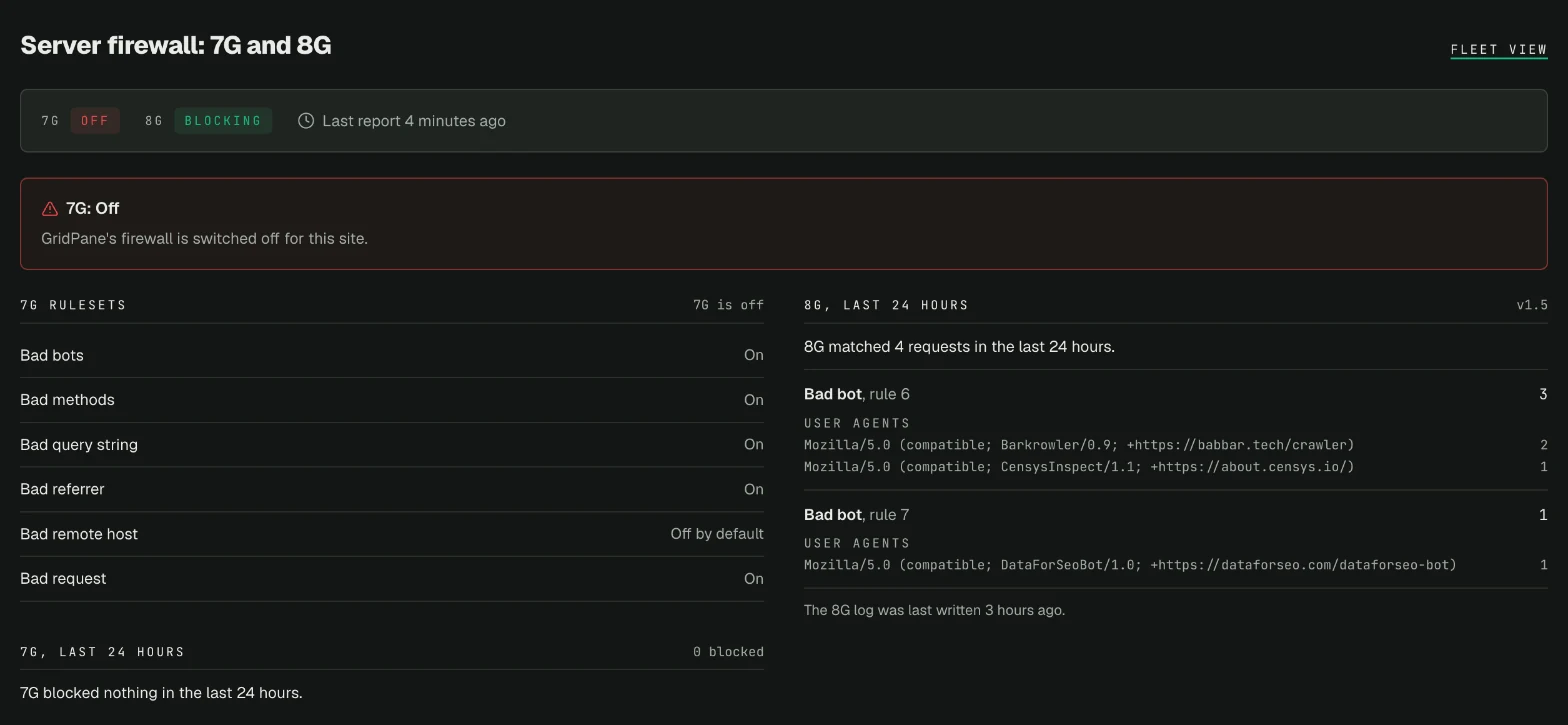
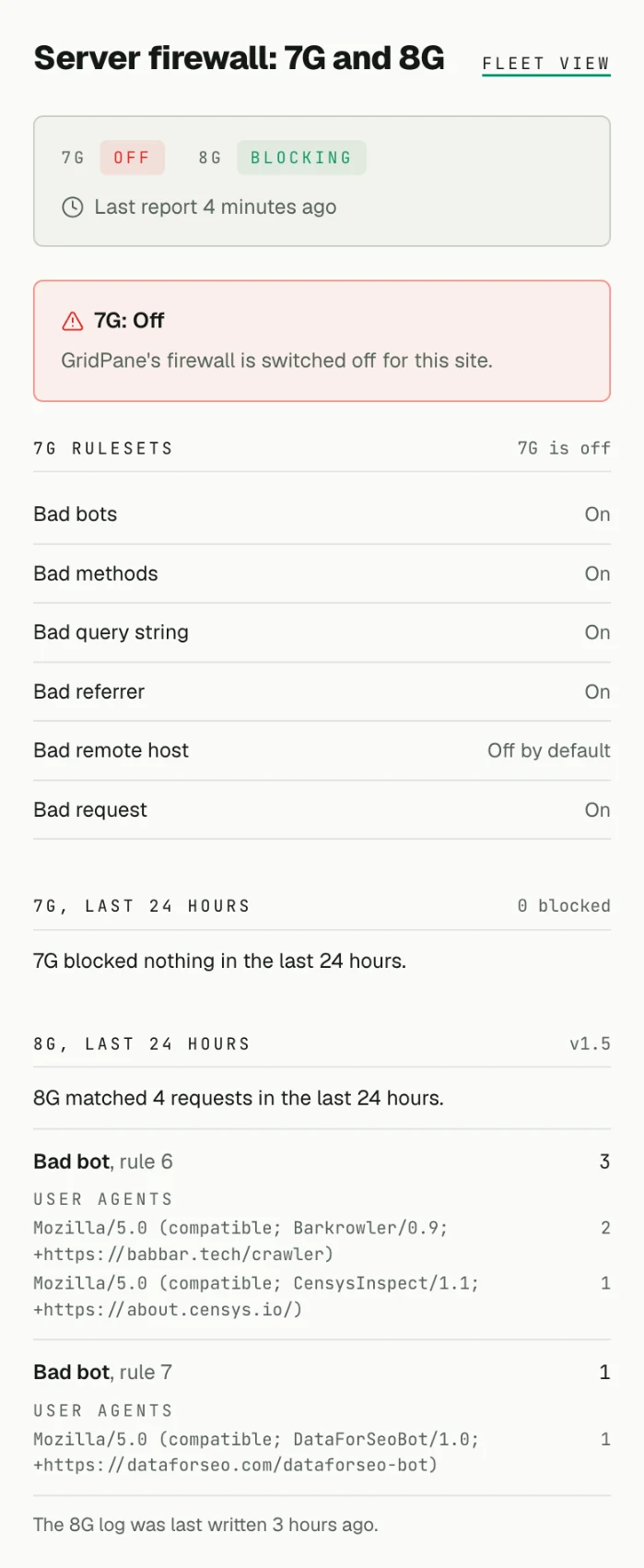
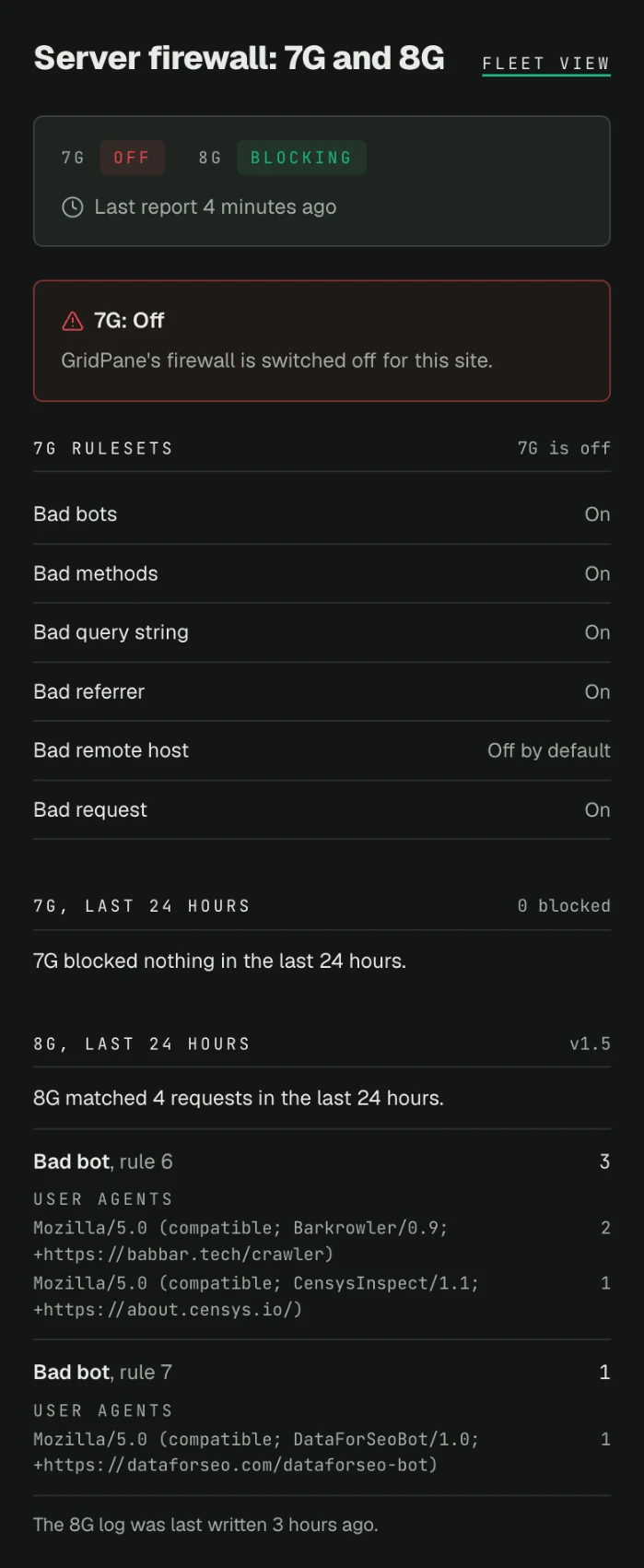
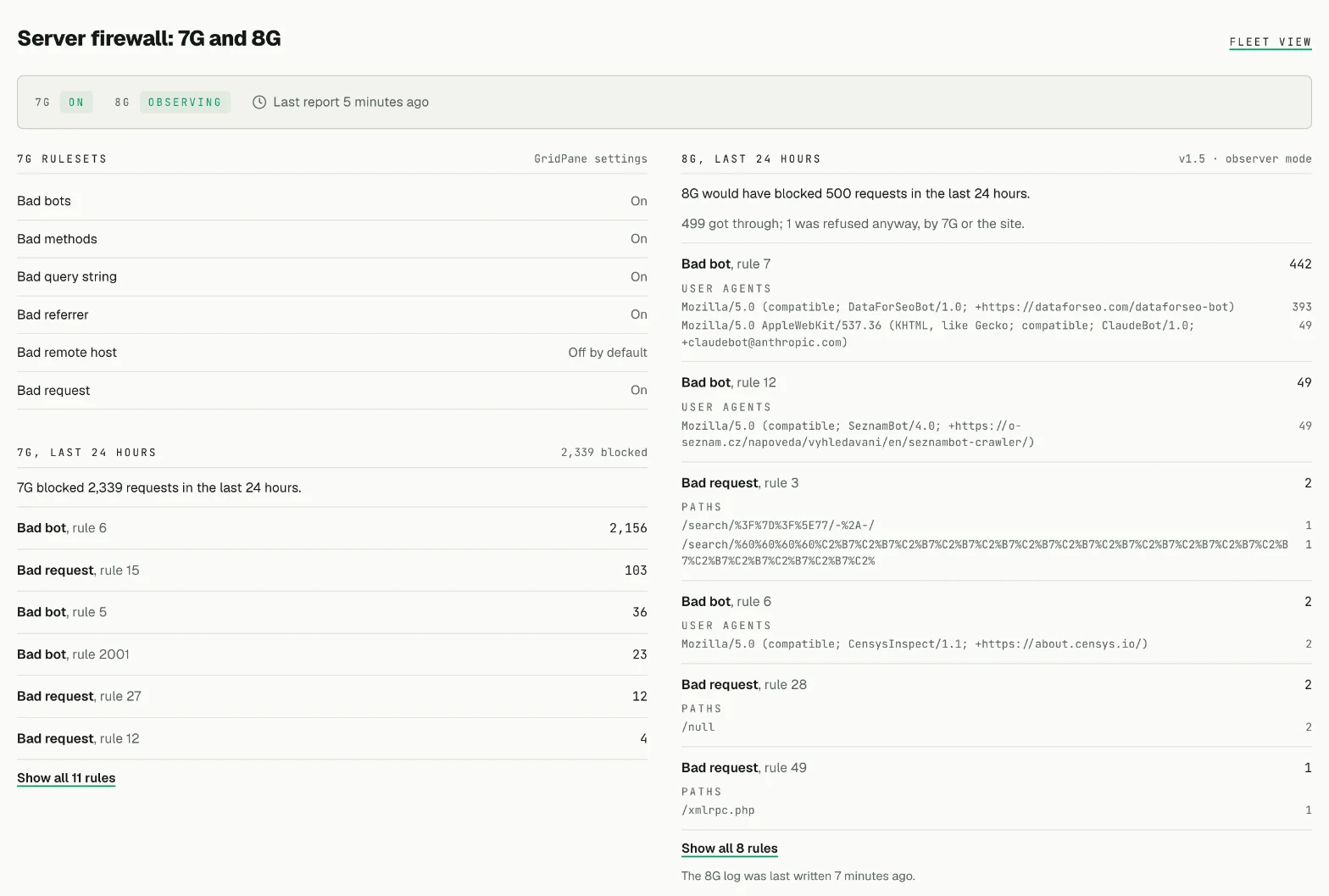
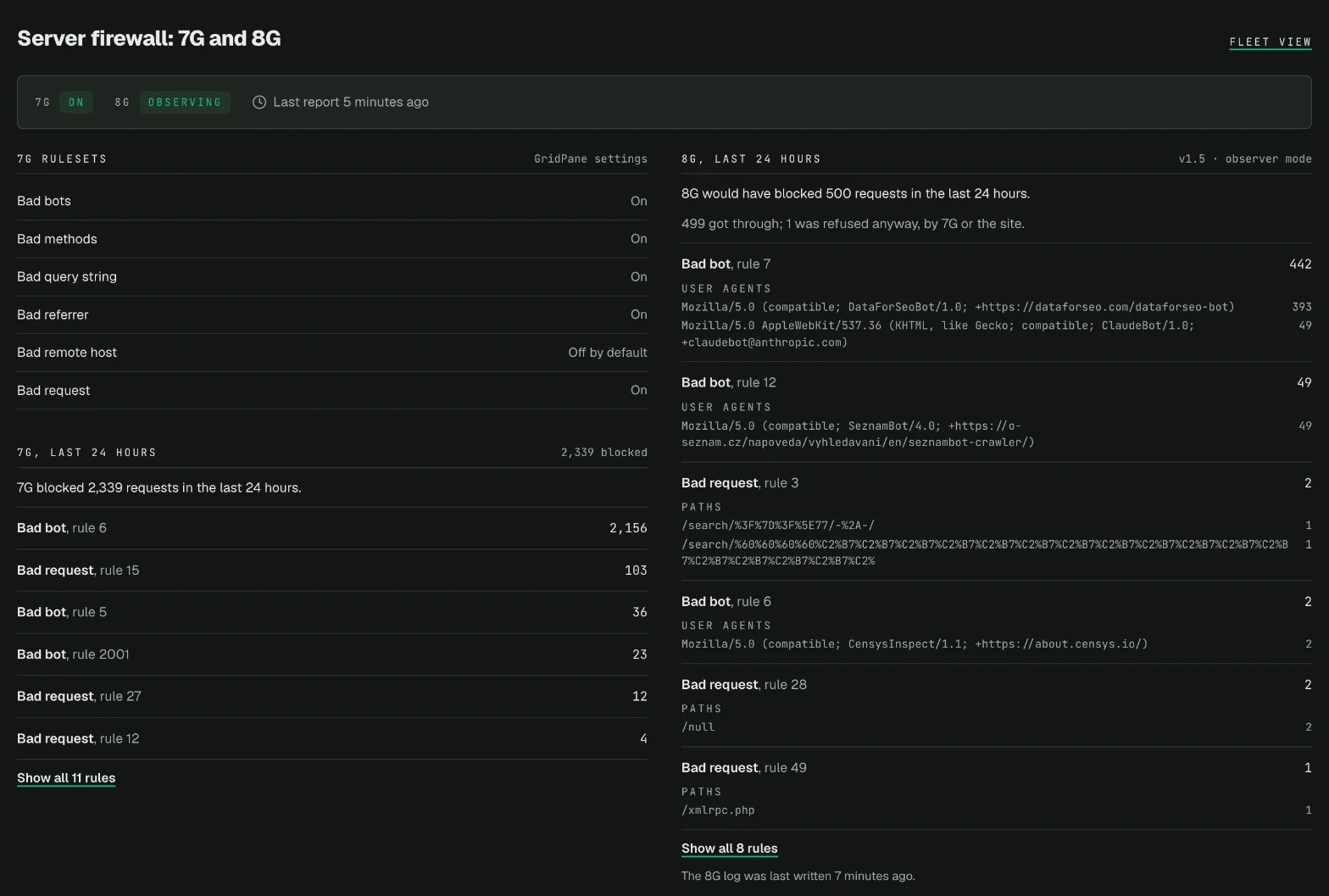
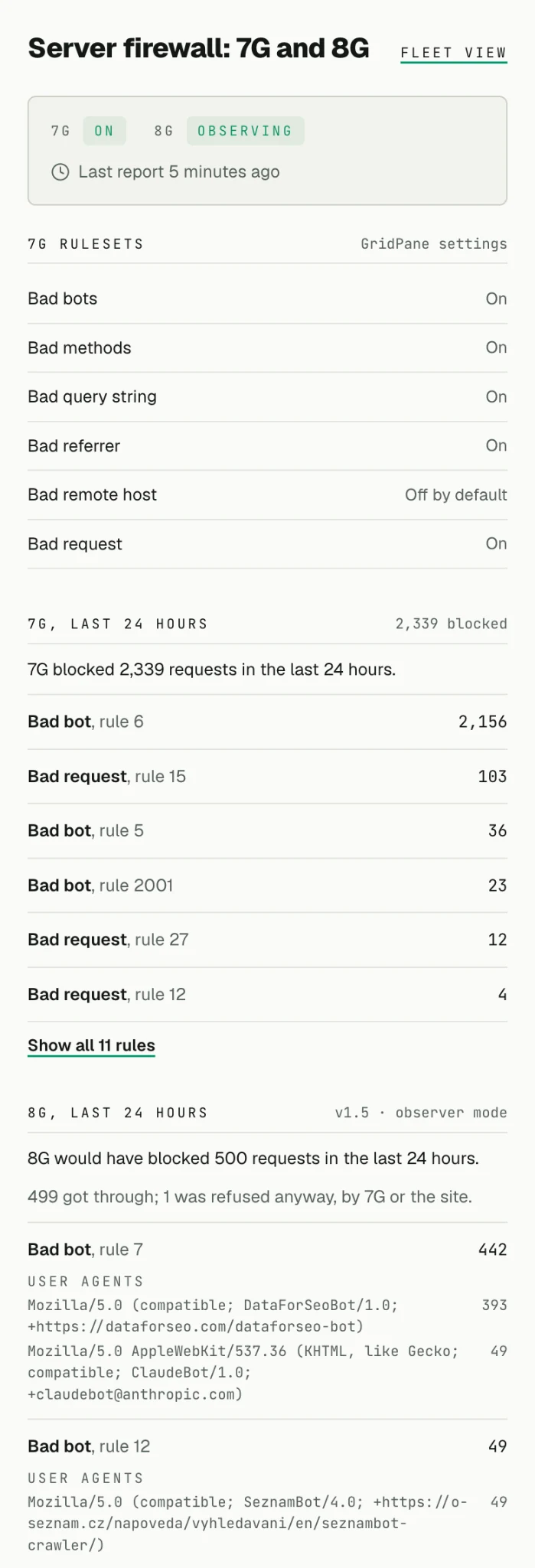
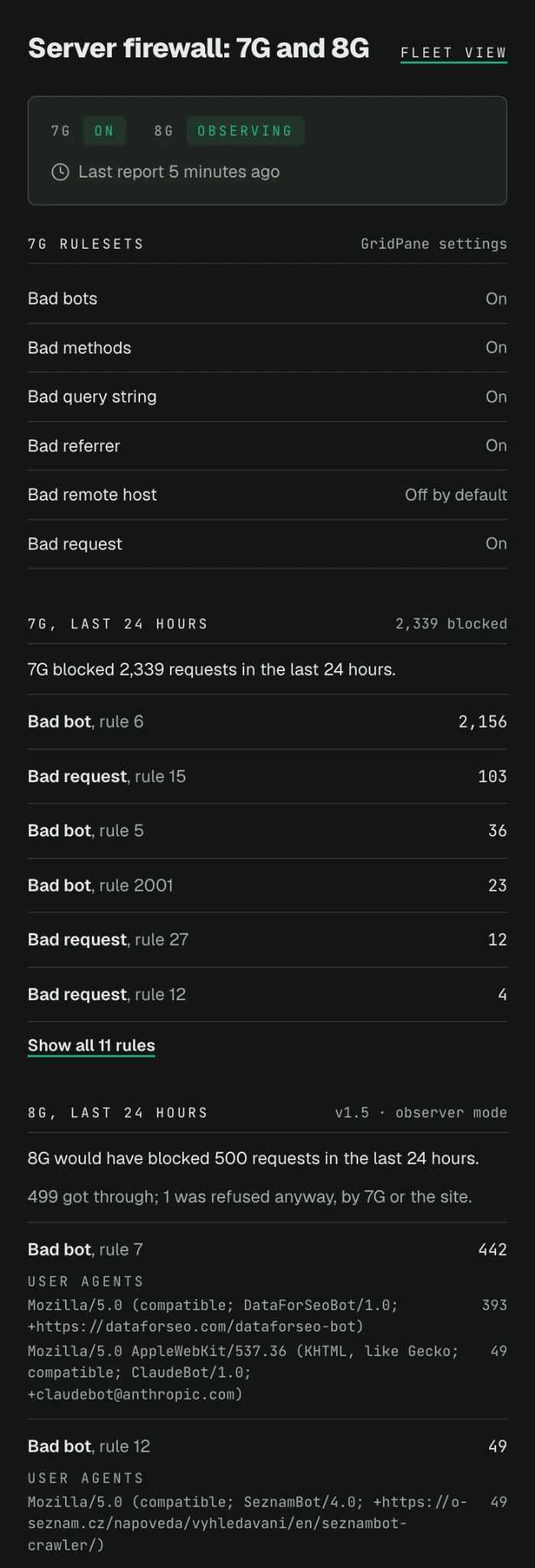
Drag a handle to compare light and dark mode.
The data comes from my own small agent on each server, which runs every 10 minutes, reads what's really in each site's nginx folder and logs, and sends counts, plus the most common user agents and paths behind each 8G rule. It never sends visitor addresses, query strings or cookies. Cloudflare has its own pages, refreshed every morning with the read-only token from my Mac, grading each zone against the standard. On the morning of November 18, 50 zones ran the five rules or a variant of them, 5 had rules of their own and 7 had none. Since that evening the report also flags any zone whose block rule still runs after a challenge.
How do I set this up on my own servers?
The quickest way is to hand the prompt below to your AI agent: it points the agent at these steps and sets the rules it must follow. The steps are for GridPane servers with sites behind Cloudflare. Run server commands as root, and use your own site's name for example.com. Before you start, run nginx -t: if it already fails, fix that first, and never restart nginx while it fails.
1. Audit 7G. This lists the sites that load it. A site missing from the list has 7G off. (Switching 7G off comments the line out, which is why the pattern needs include at the start.)
grep -lE '^\s*include\s+\S*-7g\.conf' /etc/nginx/sites-enabled/* | xargs -n1 basenameEach site's Security tab in GridPane shows which rule groups are off. Switch each one back on (gp site example.com 7g -bad-query-string on, and so on), and handle what it blocks with an exception, in step 3.
2. Rotate the 7G log. Save this as /etc/logrotate.d/7g-logs, then run logrotate -d /etc/logrotate.conf 2>&1 | grep -iE 'duplicate|error'. Two rules for one log make logrotate skip one of them, and it may be yours.
/var/www/*/logs/7g.log {
    daily
    rotate 30
    maxsize 50M
    compress
    delaycompress
    missingok
    notifempty
    copytruncate
}
3. Write exceptions, never switch rules off. Paste the blocked line from /var/www/example.com/logs/7g.log into 7G Helper (opens in a new tab) and save the file it writes where it says. Then run nginx -t && gp ngx reload, and prove both directions with the two tests it gives you. If you write an exception by hand, match $request_uri, not $uri: WordPress's pretty addresses are rewritten to /index.php inside nginx, so a $uri match misses.
4. Try 8G in watch mode. Follow the GridPane steps on 8G Helper (opens in a new tab), with 7G left on. Read the 8G log for a week or two, and sort each rule that fires into an attack, a crawler you don't want, or traffic you do want. Expect uptime monitors, payment providers' scanners, SEO tools and agent sign-ins in that last group.
5. Switch one low-risk site to 8G alone. Back up its nginx folder (cp -a /var/www/example.com/nginx /root/8g-backup-example.com). Then write the allow file, /var/www/example.com/nginx/8g-x-allow-main-context.conf, with one entry per caller you want through:
# Each entry clears one 8G rule group for one caller. Other rule groups still apply.
if ($http_user_agent ~* "(AhrefsBot|AhrefsSiteAudit)/") { set $bad_bot_ng 0; }
if ($request_uri ~ "^/wp-json/surecart/v1/incoming_webhooks") { set $bad_bot_ng 0; }
Next, write the enforce file, /var/www/example.com/nginx/8g-x-enforce-main-context.conf. Put any 7G exceptions you rely on above the include line, rewritten for 8G's variables ($bad_bot_ng, $bad_querystring_ng, $bad_request_ng, and so on):
# 8G enforce mode. Undo: delete this file, gp site example.com -7g-on, nginx -t && gp ngx reload
include /var/www/example.com/nginx/8g/8g.conf;
Then test it, switch 7G off, and reload:
nginx -t && gp site example.com -7g-off && nginx -t && gp ngx reloadIf the second test fails, run gp site example.com -7g-on and delete the enforce file.
From your own computer, using a real browser's user agent: the home page and /wp-json/ should load, while /?x=127.0.0.1 and /backup.zip should get nginx's plain 403 (not Cloudflare's "Sorry, you have been blocked" page). Then use the site the way its owner does: log in, edit a page, run a checkout and a form.
6. Check after every staging copy. Right after GridPane makes a copy on a server with 8G (or any file you added by hand to a site's nginx folder), run this. It's read-only and checks every 8G site on the server:
for D in /var/www/*/nginx; do
  ls $D/8g-*context.conf >/dev/null 2>&1 || continue
  S=$(basename $(dirname $D)); P=""
  for F in $D/8g-*context.conf; do
    N=$(basename $F)
    for W in $(grep -oE '/var/www/[^/]+/' $F | sort -u); do
      [ "$W" = "/var/www/$S/" ] || P="$P\n  $N points at $W, another site's folder"
    done
    for I in $(sed -nE 's/^[[:space:]]*include[[:space:]]+([^;[:space:]]+).*/\1/p' $F); do
      [ -f "$I" ] || P="$P\n  $N loads $I, which is missing"
    done
    for L in $(grep -oE '(log_format|\.log)[[:space:]]+ng8_[^[:space:];]+' $F | awk '{print $2}'); do
      [ "$L" = "ng8_$S" ] || P="$P\n  $N uses the log format $L, not ng8_$S"
    done
  done
  if [ -z "$P" ]; then echo "OK      $S"; else printf 'BROKEN  %s%b\n' "$S" "$P"; fi
done
nginx -t 2>&1 | tail -n 2
If a copy shows BROKEN, don't restart nginx. Take 8G off the copy. SITE is the copy's folder, never the live site's. This reloads only if nginx's test passes, and puts the files back if it doesn't:
SITE=staging.example.com
D=/var/www/$SITE/nginx; B=/root/8g-off/$SITE-$(date -u +%Y%m%d-%H%M%S)
if mkdir -p $B && mv $D/8g-* $B/; then
  [ ! -d $D/8g ] || mv $D/8g $B/
  if nginx -t; then gp ngx reload && echo "DONE: 8G is off on $SITE, its files are in $B"
  else mv $B/* $D/; echo "FAILED: files put back, nothing reloaded"; fi
fi
7. Make two Cloudflare tokens. In Cloudflare, go to My Profile, then API Tokens. Make a read-only one from the "Read all resources" template. Then make an edit one with Create Custom Token: give it Zone, Zone, Read and Zone, Zone WAF, Edit, include only the zones you'll change, and set an expiry date. Save each in its own file that only you can read, outside every repository.
8. Apply the five rules, one zone at a time. Build each rule in Cloudflare's dashboard first, from Troy's page (opens in a new tab), and add your server's address to rule 1. Put them in this order: rule 1, then the block rule, then the three challenges. Then take any network your VPN challenge lists off the block rule's list. For the API, save the zone's current rules with the read-only token. Then send the complete new set with the edit token, as {"rules": [ ... ]}. It replaces every custom rule in the zone:
ZONE=your-zone-id
API="https://api.cloudflare.com/client/v4/zones/$ZONE/rulesets/phases/http_request_firewall_custom/entrypoint"
curl -s -H "Authorization: Bearer $(cat ~/secrets/cloudflare-read.token)" "$API" > before-$ZONE.json
curl -s -X PUT -H "Authorization: Bearer $(cat ~/secrets/cloudflare-waf-edit.token)" \
  -H "Content-Type: application/json" --data @rules-$ZONE.json "$API" | jq '{success, errors}'
Read the rules back and compare them with what you sent. To undo, turn the saved copy back into that shape and send it the same way. (If the zone had no rules, which shows as a 404, this gives {"rules": []}.)
jq '{rules: [(.result.rules // [])[] | {action, expression, description, enabled}
  + (if .action_parameters then {action_parameters} else {} end)
  + (if .logging then {logging} else {} end)]}' before-$ZONE.json > undo-$ZONE.json
9. Prove it at the edge. Check that the site loads in a browser, that https://example.com/xmlrpc.php shows Cloudflare's "Sorry, you have been blocked" page, and that curl -sI -A AhrefsBot https://example.com/ comes back with cf-mitigated: challenge. Then send a test webhook from each service the site depends on, and send its link to yourself in a message to check the preview.
What should I tell an AI agent doing this?
Copy this into your agent. It points the agent at the steps above and sets the rules it has to follow:
Bring my GridPane WordPress sites to one firewall standard: 7G on every site with
exceptions instead of switched-off rules, 8G tried in watch mode before it blocks
anything, and Troy Glancy's five Cloudflare WAF rules on every zone.

Follow the steps under "How do I set this up on my own servers?" at
https://jonphillips.dev/posts/gridpane-firewall-fleet-7g-8g-cloudflare
and the rules at https://webagencyhero.com/cloudflare-waf-rules-v3/, with these rules:

1. Audit first, read-only, and change nothing: for each server, run nginx -t and
   report which sites load 7G and which 7G rule groups are off; for each Cloudflare
   zone, report its custom rules by name and action only, and whether the site's DNS
   is proxied. Report and wait.
2. Never switch a 7G rule group off and never edit GridPane's own 7G files. Fix a
   false positive with the narrowest exception file in the site's nginx folder or
   /etc/nginx/extra.d/, matching $request_uri, and prove both directions: the
   request I want passes, a bad one still gets 403.
3. Before every reload: back up what you change, run nginx -t, and reload with
   gp ngx reload only if it passes. If it fails, put the files back. Never restart
   nginx while nginx -t fails.
4. 8G goes in watch mode only, with 7G left on. Switching a site to 8G alone, and
   turning its 7G off, are my decisions, one site at a time. When I approve one:
   allow file first, enforce file second, nginx -t, then gp site <site> -7g-off,
   then the checks in step 5, and give me the undo.
5. After any staging copy on a server with hand-added nginx files, run nginx -t and
   the read-only check in step 6, and report. Don't restart nginx.
6. Cloudflare: never ask for, read out, print or log a token. I save them myself in
   files. Read with the read-only token; use the edit token only for the write.
7. Change a zone only when I've named the site and the change. Before each write, read
   the zone's name by its ID and save its current rules to a file. Send the whole rule
   set, read it back with the read-only token, confirm it matches, then prove it live.
   Never print a whole rule expression: rules can hold secrets.
8. Every site-specific allowance is another condition in rule 1, pinned to an
   address or a path. Never a sixth rule, never a looser rule 2 to 5.
   Order: rule 1 (allow), then rule 5 (block), then the challenges. A request
   that passes a challenge skips every rule after it. Leave out of rule 5's
   networks any network a challenge rule also lists.
9. Making the tokens (step 7) and any check from my own computer are mine. Tell me
   exactly what to do, then wait for me.
What's still open?
8G blocks on two sites so far. A signed webhook, a logged-in editing session and a real checkout haven't been through it yet, and the other five sites stay in watch mode until they have. The five weakened sites are next: each gets its exception, then its rule group switched back on. A staging copy of an 8G site still breaks nginx. The check catches it straight away, but I'd rather find a layout a copy can't break. And 8G Helper doesn't yet write scoped exceptions the way 7G Helper does.
Stack: GridPane's nginx build of 7G; 8G from nG-SetEnvIf (opens in a new tab) (version 1.5); Troy Glancy's five Cloudflare rules (opens in a new tab) on the free plan, written through Cloudflare's API with two scoped tokens; 7G Helper (opens in a new tab) and 8G Helper (opens in a new tab); bash scripts run over SSH from my Mac by Claude Code. Status lives in Matchless Fleet.

Jon Phillips builds websites, web apps and automations at Matchless Web (opens in a new tab) in Clinton, Mississippi.